
Troubleshooting Missing Geometry in Revit Exports
Generally the LightStanza Revit export will consider all geometry visible in the selected 3D view, considering View Template, Workset, and Phase settings. If you are attempting to export your Revit model to LightStanza and find that the resulting export is empty despite model geometry being visible in the selected 3D view, the culprit might not be your settings, but your Revit Material Library (or lack thereof).
Why is this happening?
LightStanza’s Revit plugin requires the standard Autodesk Material Library be installed to properly extract model geometry for the selected 3D view. If these libraries are missing, corrupt, or were skipped during the initial Revit installation, the exporter cannot process the 3D view geometry, leading to an empty export.
Common Symptoms:
- The Render button is disabled on Revit's View tab.
- The export process finishes instantly or much faster than usual.
- Only calculation grids appear in the imported LightStanza project, with no physical geometry included.
-
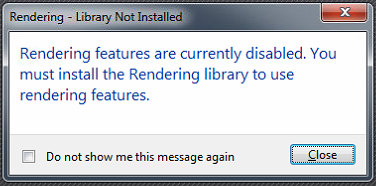
A pop-up message during the export stating Rendering features are currently disabled.
How to Fix It: Reinstalling the Material Library
You may not need to reinstall Revit entirely. You can typically repair or reinstall the libraries individually.
1. Check your Windows Control Panel
-
Close Revit.
Open the Windows Control Panel and go to Programs and Features.
Search for "Autodesk Material Library."
Look for three specific components (the year should match your Revit version):
- Autodesk Material Library 20XX
- Autodesk Material Library Base Resolution Image Library 20XX
- Autodesk Material Library Low Resolution Image Library 20XX
2. Repair or Reinstall
See the official Autodesk documentation for recommended procedures for your specific version of Revit.
Autodesk Support -- How to uninstall and reinstall the Autodesk Material Library
3. Verify the Fix
Once the libraries are installed, restart Revit and attempt the LightStanza export again. The geometry should now process correctly.
Note: If you are working in a BIM managed environment or a virtual desktop (like Citrix), you may need to contact your IT administrator to ensure the Material Libraries are mapped correctly to your local drive.