
How to Manage, Renew, or Change Your LightStanza Subscription
If you are a team administrator looking to renew, update, or review your subscription, we are here to help you get it done quickly and easily. Follow the steps below to access and manage your subscription settings:
Step 1: Access the Team Admin Page
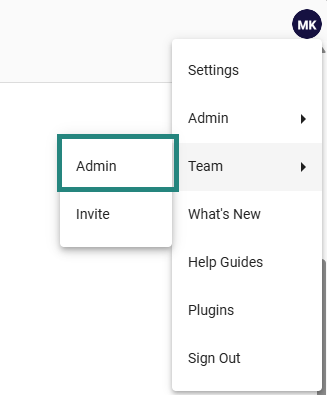
- Click on your circular profile icon, which displays your initials, located in the upper right corner of the LightStanza interface.
- In the dropdown menu that appears, hover your cursor over the "Team" option.
-
Click on "Admin" from the secondary menu that opens to access your team administration settings.
Step 2: Navigate to Your Subscription Settings
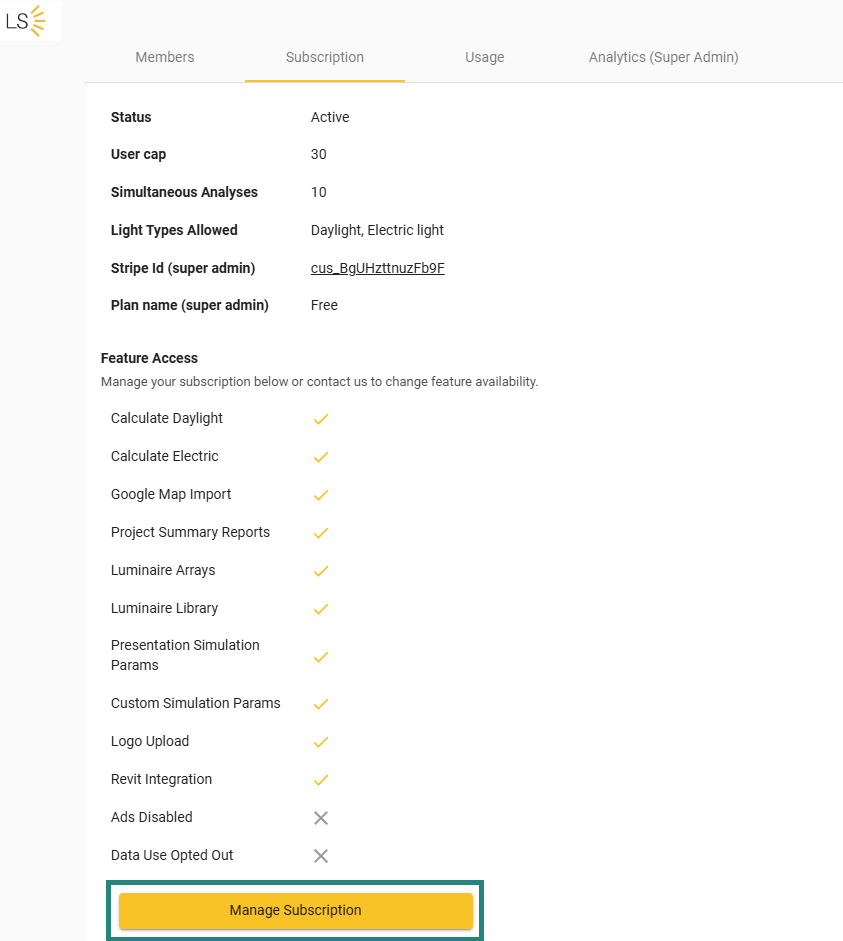
- Once you are in the Admin area, click on the "Subscription" tab located at the top of the page, next to the "Members" and "Usage" tabs.
- In this tab, you can view the specific details of your current plan, such as your "Active" status, your user cap, your simultaneous analyses limit, and your allowed light types.
- You can also review a detailed checklist of your Feature Access, showing exactly which tools are enabled for your plan, such as Calculate Daylight, Calculate Electric, Google Map Import, Revit Integration, and more.
- To upgrade, renew, or make changes to your plan, simply click the yellow "Manage Subscription" button located at the bottom of the page.
If you run into any issues or have questions about which plan is right for your team's workflow, please reach out to our support team by emailing support@lightstanza.com